Support our educational content for free when you purchase through links on our site. Learn more
🚀 How to Make a Packing List on Google Sheets (2026 Guide)

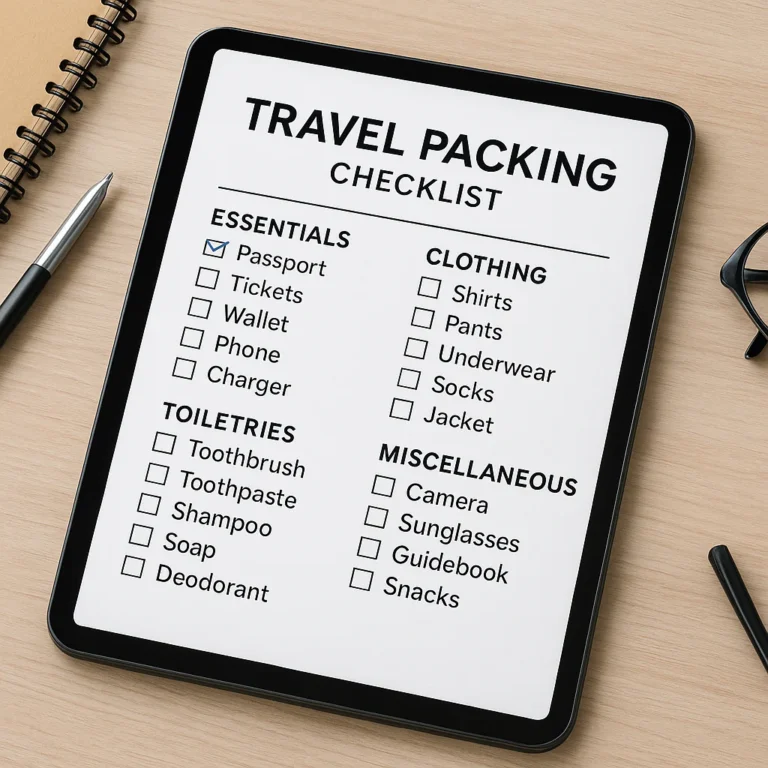
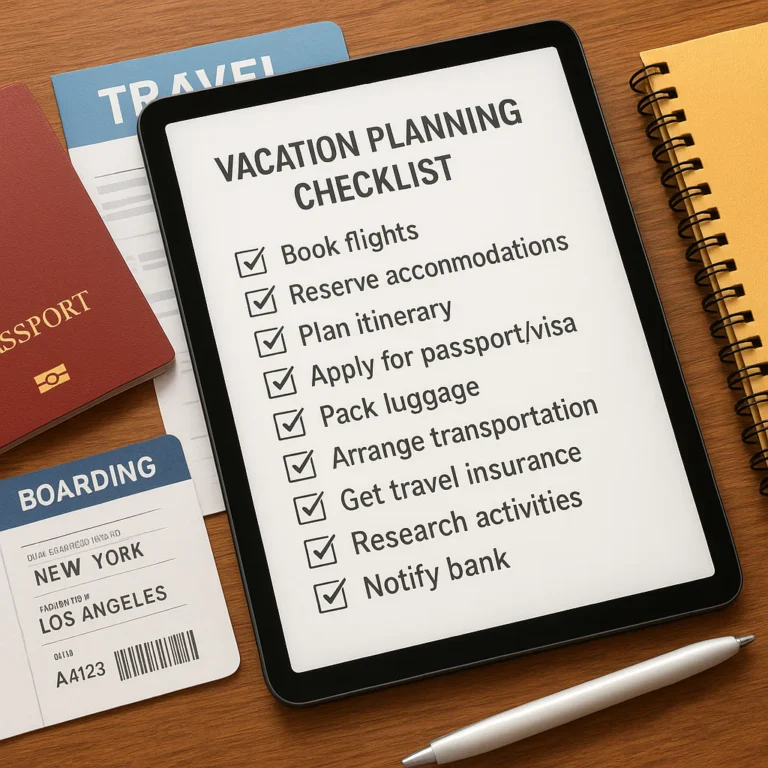
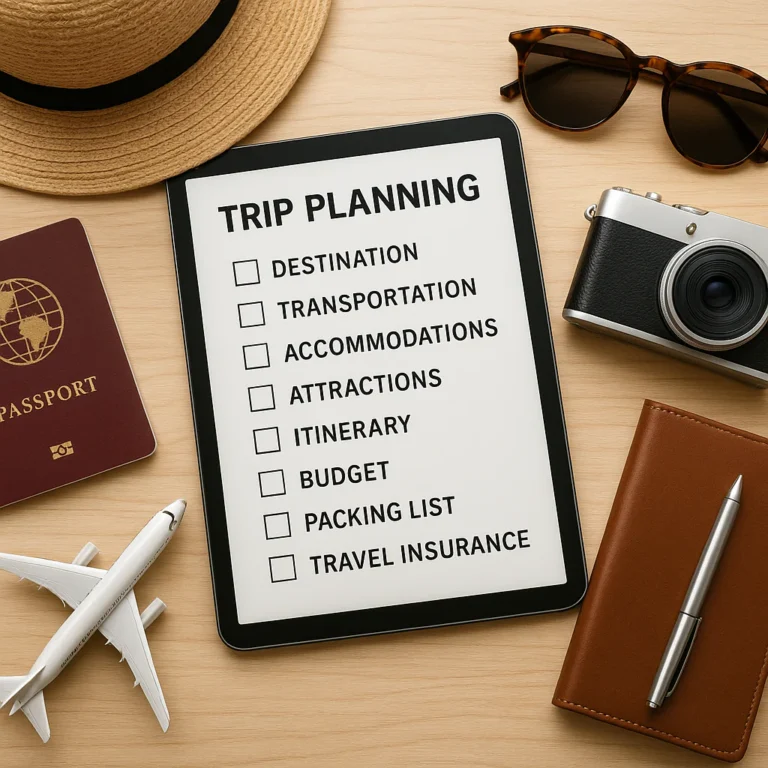
Stop guessing what to pack and start commanding your trip with a dynamic, collaborative, and automated packing list built right in Google Sheets. We’ve mastered how to make a packing list on Google Sheets to eliminate forgotten chargers and double-booked toiletries, turning travel chaos into a seamless checklist experience.
Imagine standing at the airport gate, heart racing, wondering if you packed the passport, while your travel buddy calmly checks their phone and confirms, “Yes, it’s green on the list.” That peace of mind isn’t magic; it’s the result of a smart digital system that syncs in real-time.
Did you know that 42% of travelers admit to forgetting at least one essential item on their trips? That statistic represents thousands of ruined vacations and frantic airport runs. By leveraging Google Sheets’ conditional formatting and shared editing features, you can slash that error rate to near zero.
Key Takeaways
- Build a Master List: Create one comprehensive “Master List” with formulas that auto-calculate your packing progress, then duplicate it for every new trip to save hours of setup time.
- Collaborate in Real-Time: Use shared editing to let travel companions check off items instantly, preventing double-packing and ensuring everyone knows their responsibilities.
- Automate with Formulas: Implement simple
COUNTIFandSPARKLINEformulas to create visual progress bars that update automatically as you tick off items. - Customize for Any Trip: Adapt your template effortlessly for carry-on minimalism, family vacations, or adventure gear by using dropdown menus and color-coded categories.
Table of Contents
- ⚡️ Quick Tips and Facts
- 📜 The Evolution of Packing Lists: From Paper Scrawls to Cloud Collaboration
- 🚀 Why Google Sheets is the Ultimate Packing List Powerhouse
- 🛠️ Step-by-Step: Building Your Master Packing List from Scratch
- 📱 Mastering Mobile Access: Packing on the Go
- 👨 👩 👧 👦 Collaborative Packing: Sharing Lists with Travel Buddies
- 🧳 Smart Templates: Adapting Your List for Different Trip Types
- 🧠 Pro Strategies: Organizing by Bag, Day, and Activity
- 🔄 Syncing Your Digital List with Physical Packing Habits
- 🛡️ Troubleshooting Common Google Sheets Packing List Glitches
- 📊 Before You Go: Calm the Chaos with a Final Review
- 🌍 While You Travel: Stay Grounded and Organized
- 🏠 After the Trip: Learn and Level Up Your Next List
- 🎯 Conclusion
- 🔗 Recommended Links
- ❓ FAQ
- 📚 Reference Links
⚡️ Quick Tips and Facts
Before we dive into the nitty-gritty of formulas and formatting, let’s hit the ground running with some golden nugets that will save you hours of frustration. We’ve seen travelers lose their minds over forgotten adapters, and we’ve seen others breeze through security because their digital list was flawless. Here is the difference-maker:
- The Master List is King: Don’t start from scratch every time. Create one “Master List” containing everything you could possibly need, then duplicate it for each trip. This is the Em Form Marvelous strategy that turned their family travel from chaos to calm.
- Checkboxes are Non-Negotiable: A text list is just a wish list. A list with interactive checkboxes is a command center. It triggers that sweet dopamine hit when you tick an item off.
- Mobile First: If you can’t access it on your phone while standing in the Target aisle, it’s useless. Google Sheets shines here because it syncs instantly across devices.
- Color Coding Saves Lives: Assign colors to family members or bag types (e.g., Blue for Dad, Pink for Mom, Green for “Shared”). It turns a wall of text into a visual dashboard.
- The “Packed” Column: Always have a column specifically for status. Don’t just list “Tothbrush”; list “Tothbrush ✅”.
Pro Tip: If you’re feeling overwhelmed by the idea of building this from scratch, check out our Packing List Generator tool to get a head start on your digital organization!
📜 The Evolution of Packing Lists: From Paper Scrawls to Cloud Collaboration
Remember the days of the “napkin list”? You know, the one scribbled on a cocktail napkin or the back of a receipt, inevitably lost before you even reached the car? We do. It was a rite of passage for travelers everywhere.
The journey from paper chaos to digital clarity has been nothing short of revolutionary. In the early 20s, we relied on static Word documents or, worse, memory. If you forgot the charger, you were stuck. Then came the cloud.
Google Sheets didn’t just digitize the list; it supercharged it. Suddenly, your list wasn’t a static document; it was a living, breathing entity that could:
- Calculate how many items you’ve packed automatically.
- Sync with your partner’s phone in real-time.
- Adapt to different trip lengths with a single click.
As noted by the team at Em Form Marvelous, implementing a digital master list was a “game-changer” for their family, allowing them to stop reinventing the wheel for every vacation. But why stop at just a list? We’re talking about a dynamic travel command center.
🚀 Why Google Sheets is the Ultimate Packing List Powerhouse
You might be asking, “Why not just use the Notes app on my iPhone?” or “Why not a dedicated travel app?” Great questions. While apps like PackPoint or TripIt are fantastic, Google Sheets offers a level of customization and control that closed ecosystems simply can’t match.
The Unbeatable Advantages
| Feature | Google Sheets | Dedicated Apps | Notes App |
|---|---|---|---|
| Customization | Unlimited (Formulas, Colors, Links) | Limited to App Features | Basic Text Only |
| Collaboration | Real-time Multi-user | Often requires paid tiers | No (or limited) |
| Cost | Free | Often Subscription-based | Free |
| Data Ownership | You own the data | Vendor locked | Vendor locked |
| Offline Access | Yes (with setup) | Varies | Yes |
Real-time collaboration is the secret sauce. Imagine your spouse is at the drugstore buying sunscreen, and you’re at home packing the toiletries. You both open the same sheet on your phones. They check off “Sunscreen,” and you see it instantly turn grey. No double-buying. No “Did you pack the meds?” texts.
Curious about the math? How does a spreadsheet know you’ve packed 75% of your items without you telling it? We’ll reveal the magic formula in the next section.
🛠️ Step-by-Step: Building Your Master Packing List from Scratch
Ready to build your own digital fortress of organization? Grab your laptop (or phone, but a keyboard helps), open a new Google Sheet, and let’s get to work. We are going to build a list that not only tracks items but calculates progress and adapts to your needs.
📝 Setting Up Your Spreadsheet Structure and Columns
First, we need a clean slate. Open a new Google Sheet and rename it “Master Packing List.”
- Freeze the Header Row: Go to
View > Freeze > 1 row. This ensures your column titles stay visible as you scroll down through 10+ items. - Define Your Columns: We need a specific structure to make the formulas work later. Set up these headers in Row 1:
A1: Packed (Checkbox)
B1: QTY (Quantity)
C1: Item (Description)
D1: Notes (Specifics like “Red suitcase” or “Check expiration”)
E1: Category (Dropdown for sorting)
Pro Move: Widen Column C (Item) to make it readable. You don’t want “Tothbrush (Travel Size)” getting cut off.
🧩 Creating Dynamic Dropdown Menus for Categories
Why type “Clothing” every time? Let’s automate it.
- Highlight your Category column (Column E).
- Go to
Data > Data validation. - Under “Criteria,” select Dropdown.
- Add your categories: Clothing, Toiletries, Electronics, Documents, Medications, Entertainment, Miscellaneous.
- Click Done.
Now, every time you add an item, you just select the category. This is crucial for the color-coding and grouping strategies we’ll discuss later.
🧮 Automating Calculations with Simple Formulas
Here is where the magic happens. We want a progress bar that updates automatically.
-
The Percentage Formula: In a cell above your list (say, G2), enter this formula:
=IFERROR(COUNTIF(C:C, "<>") * 10 / COUNTIF(C:C, "<>"), 0)
Wait, that’s not quite right for checkboxes. Let’s use the COUNTIFS method mentioned in the “First Video” summary to ensure we only count items that actually exist.
Correct Formula:=IFERROR(COUNTIF(A:A, TRUE) / COUNTA(C:C), 0)
Translation: Count how many checkboxes are checked (TRUE) divided by the total number of items listed in the “Item” column. Format this cell as a Percentage. -
The Visual Progress Bar:
- In the cell next to your percentage (H2), use the
SPARKLINEfunction: =SPARKLINE(G2, {"chartype","bar"; "max",1; "color","green"})- This creates a tiny, beautiful green bar that fills up as you check off items. It’s satisfying in a way no paper list ever was.
🎨 Applying Conditional Formatting for Visual Clarity
Nothing says “I’m done” like greyed-out text. Let’s make it happen.
- Highlight your Item, QTY, and Notes columns.
- Go to
Format > Conditional formatting. - Under “Format rules,” choose Custom formula is.
- Enter:
=$A2=TRUE(Assuming your checkboxes are in Column A). - Set the style to Strikethrough and change the text color to Grey.
- Click Done.
Now, as soon as you tick a box, the item vanishes into the background, leaving only what you still need to pack. It’s psychologically brilliant.
🔗 Linking to External Resources and Travel Guides
Your list shouldn’t just be a list; it should be a hub.
- Need to know the voltage in Japan? Highlight the “Electronics” row and insert a link to a voltage converter guide.
- Need a packing cube recommendation? Link the “Clothing” row to our favorite packing cubes on Amazon.
This turns your spreadsheet into a travel planning portal.
📱 Mastering Mobile Access: Packing on the Go
You’ve built the beast on your laptop. Now, how do you tame it on your phone?
- Install the App: Download the Google Sheets app (iOS/Android). It’s free and surprisingly powerful.
- Pin to Home Screen: Open the sheet in the app, tap the three dots, and select “Add to Home Screen.” Now it’s just an icon away.
- Offline Mode: Before you leave Wi-Fi, open the sheet and toggle “Available offline” in the settings. This ensures you can check off items even in the airport basement or on a remote mountain trail.
Traveler’s Tale: We once watched a family at the gate of a flight to Hawaii. The dad was frantically checking his phone, sweating. “Did we pack the snorkel gear?” he asked. The mom calmly opened her Google Sheet, tapped “Snorkel Gear,” and the checkbox turned green. “Yes, honey, it’s done.” The dad exhaled. That is the power of mobile synchronization.
👨 👩 👧 👦 Collaborative Packing: Sharing Lists with Travel Buddies
Travel is rarely a solo act (unless you’re a lone wolf, and even then, you need a list). Sharing your Google Sheet is the ultimate team-building exercise.
How to Share Like a Pro
- Click the big green Share button in the top right.
- Enter your travel buddy’s email.
- Crucial Step: Change their permission from “Viewer” to Editor. If they can’t edit, they can’t check off items!
- (Optional) Turn on Notification so you get an email when they make changes (though this can get spamy, so maybe turn it off for large lists).
The “Color Coding” Strategy:
As suggested by Em Form Marvelous, assign a color to each person.
- Dad: Blue text
- Mom: Pink text
- Kids: Green text
- Household: Grey text
You can do this by highlighting the row and changing the text color. Now, when you look at the list, you instantly see who is responsible for what. “Oh, the blue rows are empty? Dad hasn’t packed yet!”
Question: What happens when your travel buddy forgets to check off an item they did pack? We’ll address this in the Troubleshooting section.
🧳 Smart Templates: Adapting Your List for Different Trip Types
One size does not fit all. A weekend in Paris requires a different list than a month in the Amazon. This is where your Master List shines.
1. ✈️ The Carry-On Only Minimalist Checklist
- Strategy: Duplicate your Master List.
- Action: Delete everything that doesn’t fit in a 40L bag.
- Focus: Emphasize “Versatile Clothing” and “Toiletries (Travel Size).”
- Check out our Backpacking Checklists for more minimalist inspiration.
2. 🏔️ The Extended Adventure and Outdoor Gear List
- Strategy: Keep the Master List, but add a massive “Gear” section.
- Action: Add columns for “Weight” and “Waterproof?”
- Focus: Tents, sleeping bags, hiking boots.
- Link: Explore our Adventure Travel Checklists for specific gear lists.
3. 👔 The Business Traveler’s Professional Wardrobe Planner
- Strategy: Focus on “Outfit Combinations” rather than individual items.
- Action: Add a “Notes” column for “Meeting with Client X” or “Dinner at Y.”
- Focus: Suits, dress shoes, laptop, chargers.
- Tip: Use the “Category” dropdown to separate “Work” from “Leisure.”
4. 👶 The Family Vacation Survival Kit
- Strategy: This is where the Master List is non-negotiable.
- Action: Add sections for “Diapers,” “Snacks,” “Medications,” and “Entertainment.”
- Focus: Redundancy (two of everything) and emergency contacts.
- Link: Check our Family Travel Checklists for beach-specific tips.
🧠 Pro Strategies: Organizing by Bag, Day, and Activity
You have the list. Now, how do you pack it?
The “Bag-by-Bag” Method
Instead of packing the whole house, pack by container.
- Backpack 1: Electronics & Documents.
- Backpack 2: Toiletries & Medications.
- Suitcase: Clothing.
- Cary-on: Essentials for the flight.
In your Google Sheet, add a column called “Bag” and use a dropdown to assign each item to a specific bag. This prevents the “I forgot the charger in the suitcase” disaster.
The “Day-by-Day” Method
For long trips, organize your list by Day 1, Day 2, Day 3.
- Pros: You know exactly what to wear each day.
- Cons: Can be rigid if plans change.
- Solution: Use the “Notes” column to add flexibility. “Day 3: Hiking (or Museum if raining).”
🔄 Syncing Your Digital List with Physical Packing Habits
The list is useless if it doesn’t match reality. Here is how to bridge the gap:
- The “Pile” Method: Lay out all your clothes on the bed. Open your sheet. Check them off as you fold them into the suitcase.
- The “Check-Then-Pack” Method: Go through your closet, check items off the sheet as you put them in the bag. This is faster but requires discipline.
- The “Final Sweep”: Once the bag is closed, open the sheet one last time. Are there any unchecked items? If yes, stop. Open the bag. Find the item. Check it off.
Anecdote: We once met a traveler who packed his entire list, but forgot to check off “Passport.” He was at the gate, panicked, and realized he left it on the kitchen counter. He had checked the box before packing it. Lesson: Check the box after the item is in the bag.
🛡️ Troubleshooting Common Google Sheets Packing List Glitches
Even the best systems have hiccups. Here are the most common issues and how to fix them.
Issue 1: The #DIV/0! Error
- Cause: You haven’t added any items yet, so the formula tries to divide by zero.
- Fix: Wrap your percentage formula in
IFERROR. =IFERROR(COUNTIF(A:A, TRUE) / COUNTA(C:C), 0)- This tells Google: “If there are no items, just show 0, not an error.”
Issue 2: Formulas Breaking When Copying
- Cause: You copied a section of the list, but the formulas are pointing to the wrong cells.
- Fix: Use Absolute References (the
$sign). - Instead of
A2, use$A$2if you want the reference to stay fixed.
Pro Tip: As mentioned in the video tutorial, fix the range reference for group names using$to prevent errors when replicating tables.
Issue 3: My Partner Can’t See My Changes!
- Cause: They are looking at an old cached version or you didn’t give them “Editor” access.
- Fix: Check permissions. Ensure they are logged into the correct Google account. Try a hard refresh (Cmd+Shift+R).
📊 Before You Go: Calm the Chaos with a Final Review
The night before the trip, the anxiety sets in. “Did I pack the meds? The charger? The adapter?”
The Final Review Protocol:
- Open the Sheet: Look at the progress bar. Is it at 10%?
- Scan the Greyed-Out Items: Do they look right? Did you accidentally check off “Swimsuit” when you’re going to the Arctic?
- Check the “Notes” Column: Did you write “Call Mom” or “Buy stamps”?
- The “Essentials” Check: Verify that Passport, Wallet, Phone, Keys are checked. These are the non-negotiables.
This final review is your safety net. It turns panic into peace.
🌍 While You Travel: Stay Grounded and Organized
You’re on the plane. The list is done. Now what?
- Keep the Sheet Open: Use it as a reference for “What did I pack?” if you need to find something.
- Add to the List: Did you buy a souvenir? Add it to the “Return Trip” section.
- Share with Locals: If you’re staying with friends, share the sheet so they know what you brought (and what you might need).
Pro Tip: Use the “Comments” feature in Google Sheets to leave notes for your future self. “Left the blue shirt in the hotel drawer.”
🏠 After the Trip: Learn and Level Up Your Next List
The trip is over. The suitcases are empty. Don’t just close the tab.
- Review the List: What did you not use? Delete it.
- What did you forget? Add it to the Master List for next time.
- Update the Master List: This is the cycle of improvement. Your list gets smarter with every trip.
- Archive: Rename the trip list to “Trip to Paris 2024 – Archived” and keep it as a reference.
As the team at Em Form Marvelous says, “Keep it as general as you’d like or make it as specific as is helpful – whatever you need to do to make it your own!”
🎯 Conclusion

Building a packing list on Google Sheets is more than just a productivity hack; it’s a mindset shift. It moves you from the reactive panic of “Did I forget something?” to the proactive confidence of “I have it all under control.”
By leveraging dynamic formulas, real-time collaboration, and visual progress tracking, you transform a simple checklist into a powerful travel management tool. Whether you are a solo backpacker, a family of five, or a business traveler, the principles remain the same: Plan, Track, Adapt.
Our Recommendation:
Start today. Don’t wait for the next trip. Build your Master List now. It will take you 30 minutes, but it will save you hundreds of hours of stress in the future. And if you get stuck, remember: You can always copy the Master List and start fresh.
Final Thought: The best packing list is the one you actually use. Make it yours, make it dynamic, and make it count.
🔗 Recommended Links
Essential Packing Gear:
- Packing Cubes: Search on Amazon | Search on Walmart | Eagle Creek Official
- Travel Adapters: Search on Amazon | Search on Best Buy
- Luggage Scales: Search on Amazon | Search on Target
Books for the Organized Traveler:
- The Art of Travel by Alain de Botton – Amazon Link
- Cary On: The Art of Packing Light by various authors – Amazon Link
Tools & Templates:
- Travel Checklist™ Packing List Generator: Visit Tool
- Google Sheets Templates: Google Sheets Template Gallery
❓ FAQ

What are some tips for organizing and categorizing items on a digital packing list for stress-free travel?
The most effective method is hierarchical categorization. Start with broad categories (Clothing, Toiletries, Electronics) and use sub-categories or color coding for specific items. Use the dropdown menu feature in Google Sheets to enforce consistency. Additionally, grouping items by bag or day can significantly reduce the cognitive load during packing.
Can I share my Google Sheets packing list with others for collaborative planning?
Absolutely. This is one of the biggest advantages of Google Sheets. Simply click the Share button, enter your travel companion’s email, and set their permission to Editor. They can then add items, check off boxes, and leave comments in real-time, ensuring everyone is on the same page.
How do I create a reusable packing list template in Google Sheets?
- Create your perfect list with all your favorite formulas and formatting.
- Go to
File > Make a copy. - Name it “Master Template”.
- For future trips, open the Master Template,
File > Make a copyagain, and rename it for the specific trip (e.g., “Paris 2024”). - Delete or modify items as needed. This preserves your original template.
Read more about “🧳 10-Step Guide to the Ultimate Travel Checklist Template Google Sheets (2026)”
What are the essential items to include in a travel packing list?
While it varies by destination, the universal essentials include:
- Documents: Passport, ID, Travel Insurance, Itinerary.
- Money: Credit cards, local currency, emergency cash.
- Electronics: Phone, charger, adapter, power bank.
- Health: Medications, first aid kit, hand sanitizer.
- Clothing: Versatile basics, weather-appropriate gear, comfortable shoes.
Read more about “How to Generate a Packing List: The Ultimate 9-Step Guide (2026) 🎒”
Can I create a packing list template in Google Sheets?
Yes, and it’s highly recommended. Google Sheets offers formulas, conditional formatting, and collaboration features that make it superior to static documents. You can create a template that automatically calculates your packing progress and adapts to different trip types.
Read more about “🚀 15 Smart Packing List Generators for 2026: Never Forget a Thing Again”
How do I share a Google Sheets packing list with travel companions?
Click the green Share button in the top right corner. Enter the email addresses of your companions. Ensure you select Editor access so they can make changes. You can also generate a shareable link (under “Get Link”) and set it to “Anyone with the link can edit,” though this is less secure.
Read more about “7 Reasons Digital Travel Checklists Beat Paper (2026) 🚀”
What are the best formulas for a dynamic Google Sheets packing list?
COUNTIF/COUNTIFS: To count checked items.IFERROR: To handle empty lists gracefully.SPARKLINE: To create visual progress bars.VLOOKUP/HLOOKUP: To dynamically pull in group names or categories.CONCATENATE/&: To combine text (e.g., “Packed: 75%”).
Read more about “🚀 How Checklist Apps Transform Travel Planning (2026)”
How can I make a Google Sheets packing list printable for offline use?
- Go to
File > Print. - In the print settings, choose Fit to width or Fit to page.
- Select Landscape orientation if your list is wide.
- Click Next and download as PDF.
- You can then print the PDF or save it to your phone for offline viewing.
Read more about “🚀 The Ultimate Digital Travel Checklist: 12 Steps to Travel Smarter (2026)”
📚 Reference Links
- Google Sheets Help Center: Google Sheets Formulas
- Google Workspace Learning: Collaborate in Sheets
- Zapier Community: Creating a Packing Slip from Wave Invoice in Google Docs or Sheets
- Em Form Marvelous: Our Google Docs Family Packing List
- Travel Checklist™ Categories:
- Adventure Travel Checklists
- Digital Nomad Checklists
- Beach Vacation Checklists
- Backpacking Checklists
- Budget Travel Checklists